
In Realm VTT, you can create Canvas Scenes to quickly sketch out basic maps. This is an essential tool for GMs who need to improvise a dungeon or terrain layout on the fly when a pre-made map isn't ready.
While we plan to expand this with multiple aesthetic styles in the future, the current version features a clean, Old-School (OSR) style with customizable background colors.
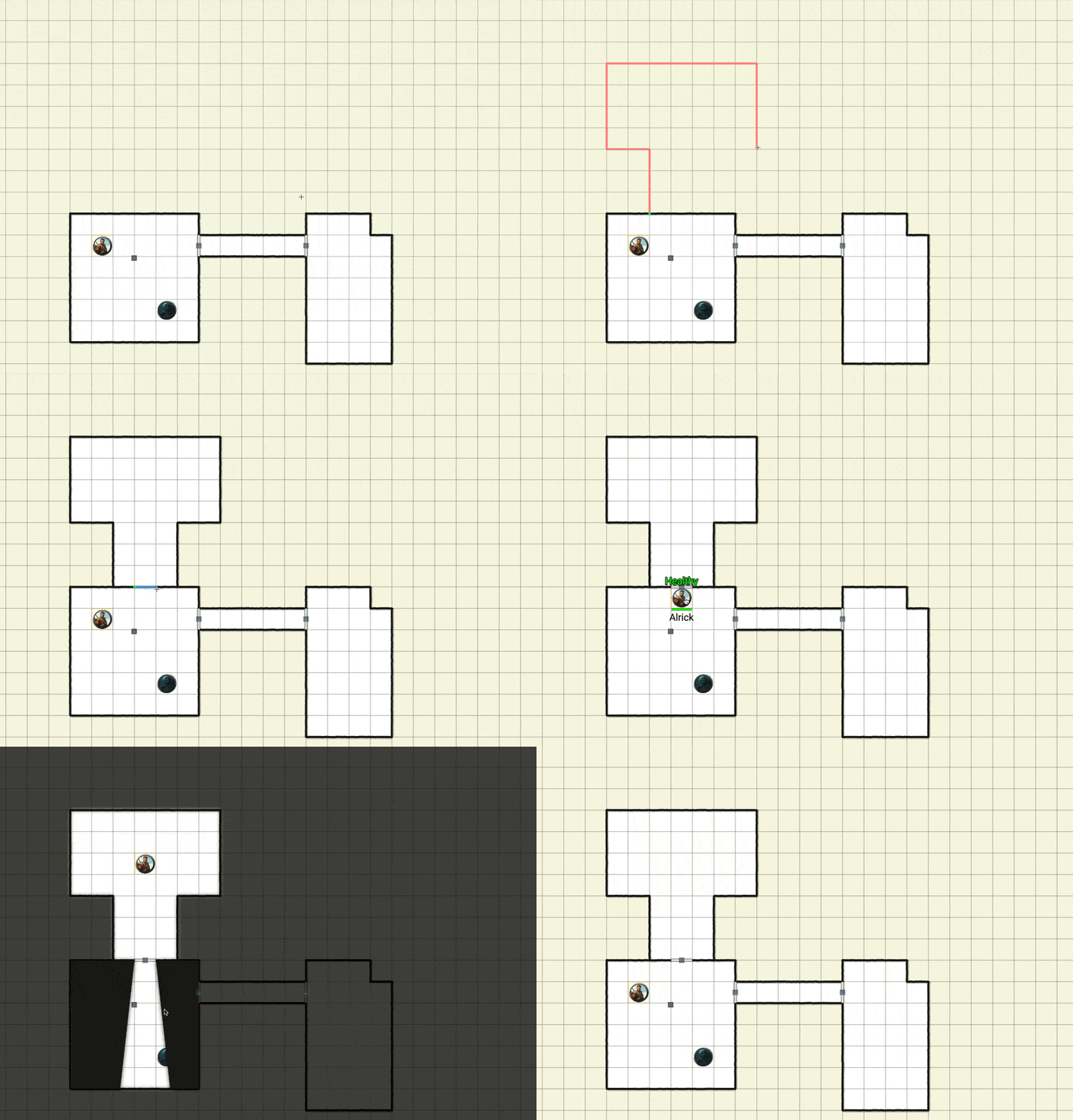
Collaborative Mapping for Old-School Play
What makes Canvas Scenes truly unique is the ability for both GMs and Players to draw on the scene. This is perfect for old-school style adventuring where a designated player acts as the "mapper," documenting the party's progress through the dungeon in real-time.
How to Create a Canvas Scene
-
Open the Scenes Tab: Click on New Scene from the Left Drawer.
-
Select Canvas Scene: Give your scene a name and select the Canvas Scene type.
-
Configure Your Grid: Choose a size (up to 100x100 cells) and pick your preferred background color.
-
Start Drawing! Once inside, you can begin laying out your dungeon immediately.
Drawing Tools & Shortcuts
The drawing interface is designed for speed and precision. Use these tools to build your map:
-
Walls: Click the purple Wall button on the right.
-
Snap-to-Grid: Default behavior for straight lines.
-
Restrict Direction: Hold Shift to lock to a specific axis.
-
Free-hand: Press "S" to draw organic shapes.
-
Note: Walls automatically include Line of Sight (LoS) properties.
-
-
Doors & Windows: Select the respective icon and draw anywhere. These tools automatically snap-to-grid and will auto-replace walls when drawn over them.
-
Erase & Edit: Use the Erase tool to click and delete specific segments.
-
Undo/Redo: Made a mistake? Use Ctrl/Cmd-Z to undo or Shift-Cmd-Z to redo your last action.
Customizing Permissions and Settings
Access the Settings (top-right button) to fine-tune your scene:
-
Resize: Expand or shrink the canvas as the adventure grows.
-
Color Palette: Change the background color at any time.
-
Player Controls: Toggle the ability for Players to draw on the map to suit your table's playstyle.